


Does your phone lose battery even when you are barely using it? Or does it drop from 80% to 40% within a few hours? Before buying a new phone or spending money on a battery replacement, it is worth checking what is actually consuming the power..Battery drain can be caused by high screen brightness, apps running in the background, poor network signals, overheating or an ageing battery. Both Android phones and iPhones offer built-in tools to help you identify the problem..
Here are 10 common reasons your phone battery drains quickly and the practical steps you can take to improve battery life..
1. Screen Brightness Is Too High

Your phone's display can consume a significant amount of power, especially when brightness stays high for long periods..
What to do:
- Reduce brightness to a comfortable level.
- Enable Adaptive Brightness on Android or Auto-Brightness on iPhone.
- Set your screen to turn off automatically after a shorter period.
- Consider using Dark Mode if your phone has an OLED display..
These adjustments can reduce unnecessary power consumption during everyday use.
Apps Are Using Battery in the Background
Some apps continue to refresh content, fetch information or use location services even when you are not actively using them..Social media, navigation, video and other frequently updated apps may contribute to battery drain, depending on your usage..What to do on Android: Open Settings and look for Battery or Battery Usage. Check which apps are consuming the most power and review their background usage..What to do on iPhone: Open Settings, tap Battery and review battery usage by app. Check whether an app is using substantial power in the background..Restrict background activity where appropriate, but remember that notifications and updates may become delayed..
3. Weak Mobile Network Signals
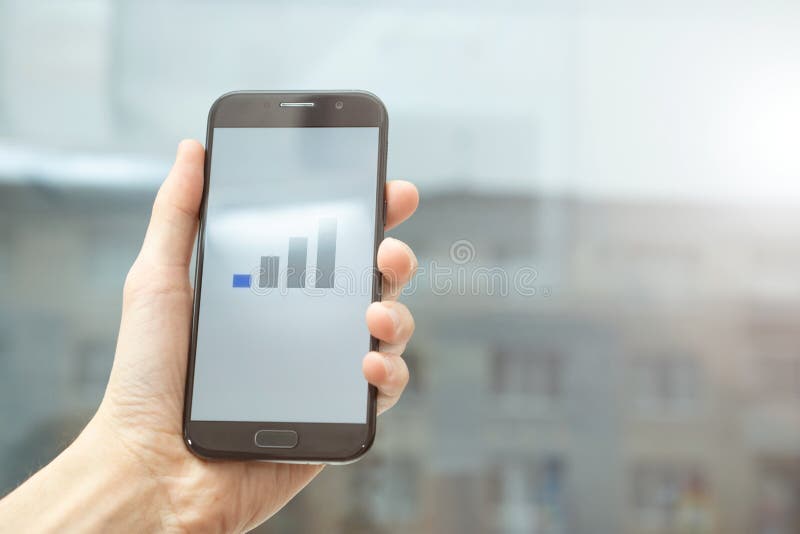
Have you noticed your battery draining faster in a basement, lift or area with poor mobile coverage?
When the signal is weak, your phone may use additional power trying to maintain a connection. Network conditions can therefore affect battery life even when you are not actively browsing.
What to do:
- Use a reliable Wi-Fi connection when available.
- Avoid leaving mobile hotspots running unnecessarily.
- If you have no cellular coverage and do not need calls or mobile data, consider Airplane Mode temporarily..
You do not need to disable connectivity all the time. Choose settings according to your situation..
4. Location Services Are Always Active
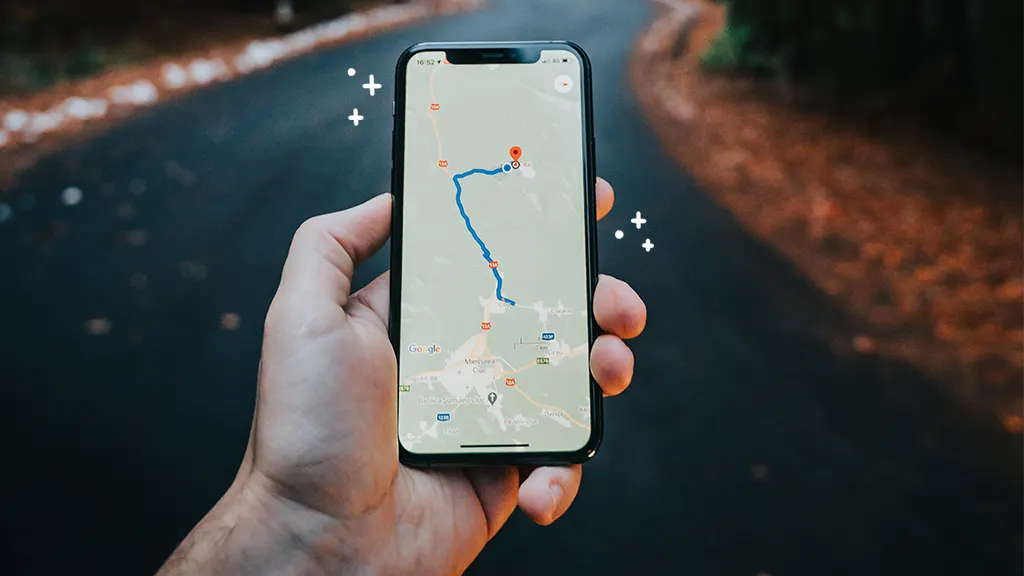
Maps, ride-booking apps, weather services and other applications may request access to your location..Frequent or continuous location use can contribute to battery consumption, particularly when combined with mobile data and a bright screen..What to do: Review location permissions in your phone's settings. Allow location access only when necessary, or choose an option such as “While Using the App” where available..Do not disable location access for essential safety or navigation features you rely on..
5. Your Phone Is Getting Too Hot

Heat is not just uncomfortable; it can also affect battery performance and long-term battery health..Gaming, video recording, navigation, charging in a hot environment and leaving a phone in direct sunlight can raise its temperature. Google warns that a hot phone can drain battery much faster, even when it is not being used..
What to do:
- Keep your phone away from direct sunlight.
- Avoid heavy gaming or video recording while charging if the device becomes excessively hot.
- Remove it from a hot environment and let it cool naturally.
- Do not place a hot phone in a refrigerator or freezer..
If overheating happens frequently during light use, check for software updates and seek professional support if the problem continues..
6. An App or Software Update Is Causing Extra Drain
Sometimes battery usage increases after installing an app or updating your phone's operating system. Your device may be completing background tasks, or an app may be behaving unexpectedly..
What to do:
- Check for available app and system updates.
- Restart your phone.
- Review battery usage to identify unusual activity.
- If the problem began immediately after installing a particular app, review its permissions or consider removing it..
Avoid assuming every battery issue is caused by an update. Check the usage data first.
7. Your Battery Has Started Ageing
Rechargeable batteries gradually lose capacity over time. This means an older phone may no longer last as long on a full charge as it did when it was new..
How to check:
On an iPhone, go to Settings and open Battery. Depending on your model and software version, look for Battery Health or Battery Health & Charging..On Android, the available battery-health tools vary by manufacturer and model. Check your phone's settings or the manufacturer's official support page..If the battery-health screen recommends service, or the phone shuts down unexpectedly despite showing a charge, arrange an assessment with an authorised service provider..
8. Your Phone Is Constantly Searching for Connections
Wi-Fi, Bluetooth, mobile data and connected accessories can all use power. The effect depends on the device, signal conditions and how these features are being used..What to do: Turn off a connection when you genuinely do not need it, and disable your hotspot after sharing your internet connection..There is no need to switch off every wireless feature automatically. For example, Bluetooth may be necessary for your smartwatch or wireless accessories.
9. You Are Streaming Videos or Gaming for Long Periods
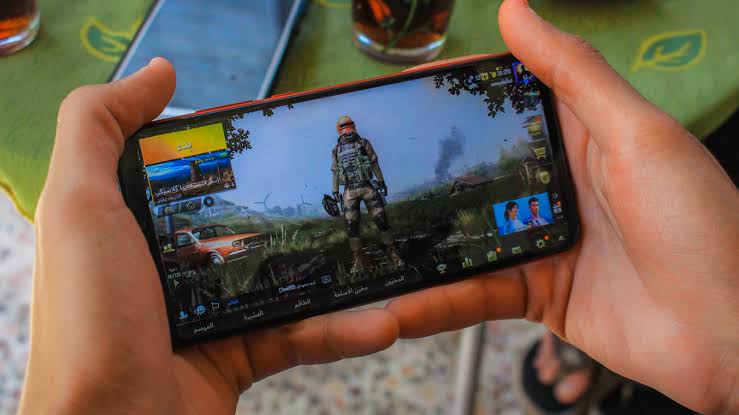
Watching videos, recording clips, playing graphics-intensive games and using navigation for extended periods can consume considerable battery power..The display, processor, speakers, camera and network connection may all be working simultaneously..
What to do:
- Lower screen brightness.
- Download content over Wi-Fi when practical instead of repeatedly streaming it.
- Use Battery Saver or Low Power Mode when you need your phone to last longer.
- Take breaks from resource-intensive apps when your battery is running low..These actions can help, but no setting can eliminate the power needed for demanding tasks..
10. You May Need to Replace the Battery
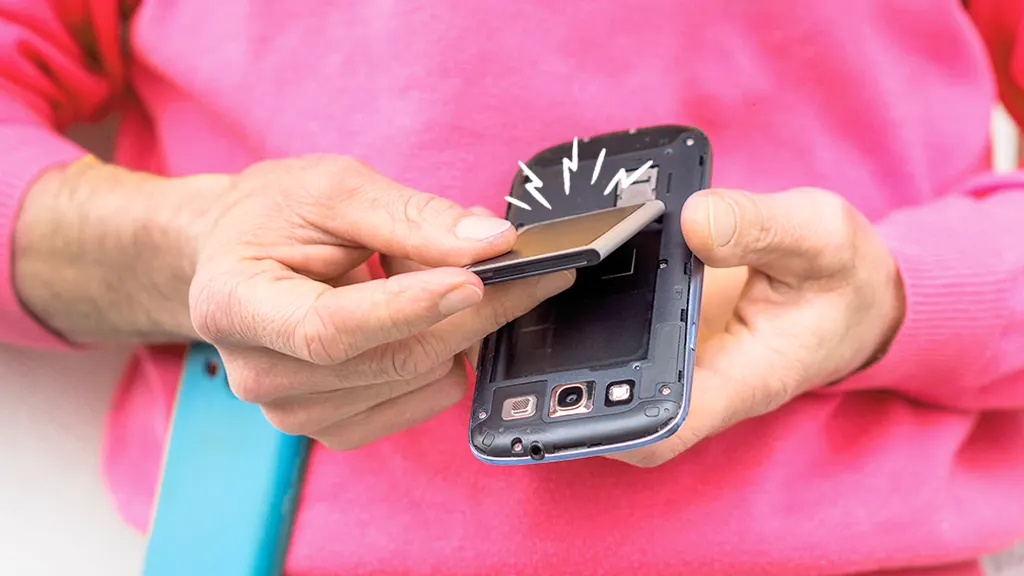
If your phone drains rapidly despite sensible settings, becomes unusually hot, switches off unexpectedly or shows a battery-service warning, the battery may need professional assessment..
However, rapid battery drain does not automatically mean the battery is damaged. A problematic app, poor signal or software issue can produce similar symptoms..
Back up your important data before a service appointment. Use the manufacturer's authorised service options to understand whether a replacement is necessary and what it will cost..
Android vs iPhone: Where Should You Check Battery Usage?
The exact menu names depend on your device and software version, but these are useful starting points..
Android
1. Open Settings.
2. Select Battery or Battery Usage.
3. Review apps consuming the most power.
4. Adjust background usage and enable Battery Saver when needed..
iPhone
1. Open Settings.
2. Tap Battery.
3. Review battery usage and any suggestions shown.
4. Check battery health if the option is available for your model..
For detailed instructions, use the official Google Android Help or Apple Support pages listed below..
5 Battery-Saving Habits Worth Following Every Day
You do not need to change every setting on your phone. Start with these practical habits:-
- Keep screen brightness at a comfortable level rather than maximum.
- Check battery usage before blaming a particular app.
- Avoid exposing your phone to excessive heat.
- Review location and background permissions periodically.
- Keep your phone's software and apps updated..
You also do not need to repeatedly drain a lithium-ion battery to 0% to “train” it. Modern phones manage their batteries electronically, and routine full discharges are not required..